Soundcore Earbuds Instructions: A Comprehensive Guide
Welcome! This guide provides detailed instructions for your soundcore earbuds, covering everything from initial setup to advanced features and troubleshooting, ensuring optimal performance.
Getting Started with Your Soundcore Earbuds
Congratulations on choosing soundcore! To begin, carefully unpack your earbuds and charging case. Your new earbuds will automatically power on when removed from the charging case, indicated by a flashing white LED. This signifies they are ready for Bluetooth pairing.
Before first use, ensure the earbuds are adequately charged. Connect the charging case to a power source using a USB-C cable; the LED indicator will show the charging status. Download the soundcore app – a crucial step to unlock the full potential of your earbuds.
The app allows for customization of EQ settings, touch controls, and firmware updates. Familiarize yourself with the basic controls; a single tap, double tap, or press and hold can manage playback, calls, and voice assistants. Explore the various modes like ambient sound and gaming mode within the app for a personalized listening experience.
Unboxing and Components
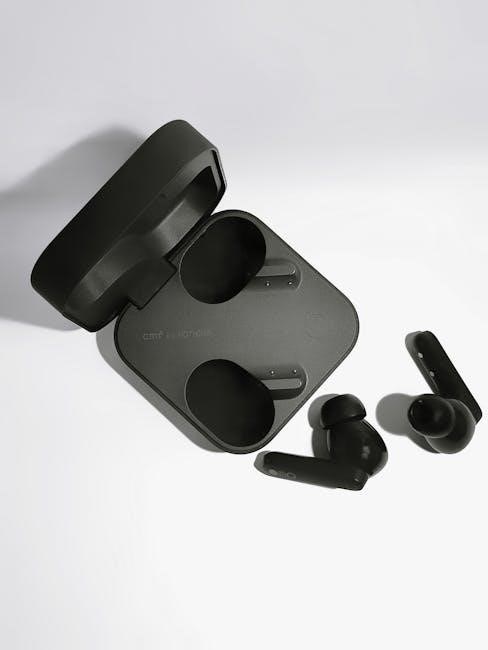
Upon opening your soundcore earbuds package, you should find several key components. These typically include the soundcore earbuds themselves, nestled securely within the charging case. A USB-C charging cable is provided for powering up the case, and often, multiple sizes of ear tips are included – small, medium, and large – to ensure a comfortable and secure fit for various ear shapes.
You’ll also receive a quick start guide, offering basic instructions for pairing and operation. Some models may include additional accessories like a carrying pouch or specialized ear wings for enhanced stability during workouts. Carefully inspect all components to confirm everything is present and undamaged.
Retain the original packaging for potential warranty claims or returns. Familiarize yourself with each component before proceeding to the charging and setup stages. Proper identification of parts will streamline the initial setup process.
Charging the Earbuds and Case
To charge your soundcore earbuds, place them inside the charging case and close the lid. The case will begin charging the earbuds automatically. Connect the charging case to a power source using the provided USB-C cable. A LED indicator on the case will illuminate, typically displaying red while charging and turning green when fully charged.

Allow approximately 2-3 hours for a full charge of both the earbuds and the case. The case itself can be charged independently, providing multiple additional charges for the earbuds. It’s recommended to fully charge both the earbuds and case before initial use.
Avoid using fast chargers or high-voltage power adapters, as they may damage the battery. Regularly charging the case ensures your earbuds are always ready for use. Check the LED indicator for charging status updates.
Powering On and Off
Soundcore earbuds are designed for seamless operation. To power on, simply remove the earbuds from the charging case – they will automatically activate and enter Bluetooth pairing mode if not previously connected. A white flashing LED typically indicates pairing readiness.
To power off, place both earbuds back into the charging case and close the lid. They will automatically shut down and begin charging. There is generally no manual power-off button; the case manages the power cycle.
If the earbuds fail to power on, ensure they have sufficient charge by placing them in the case and charging. Some models may have a brief delay before powering on after removal. Consistent charging habits ensure reliable operation.
Bluetooth Pairing – Initial Setup
Initial pairing is straightforward; With the earbuds removed from the charging case, a white LED flashing on one earbud signifies pairing mode. Navigate to your device’s Bluetooth settings and select “soundcore” from the available devices list. If prompted, enter “0000” as the pairing code, though this is rarely required.
For the first connection, your device will remember the earbuds. Subsequent connections will happen automatically when the earbuds are powered on and within Bluetooth range. If automatic connection fails, manually select the earbuds from your Bluetooth device list.
Ensure the earbuds are close to your device during pairing. Interference from other Bluetooth devices can sometimes hinder the process. If issues persist, try resetting the earbuds (refer to the troubleshooting section).
Understanding the Earbud Controls
Soundcore earbuds utilize intuitive touch controls, allowing you to manage music, calls, and voice assistants directly from the earbuds themselves. Typically, single taps control playback (play/pause), double taps skip forward, and triple taps return to the previous track. However, these controls are customizable via the soundcore app.
Long-pressing an earbud often activates the voice assistant on your connected device (Siri, Google Assistant, etc.). Control schemes can vary slightly between models, so consulting your specific earbud’s documentation is recommended. The app provides a visual guide to each control’s function.
Precise touch placement is key for accurate control. Experiment to find the sweet spot on each earbud for reliable operation.
Basic Playback Controls
Controlling your music with Soundcore earbuds is straightforward. A single tap on either earbud typically plays or pauses the current track. To skip to the next song, execute a double tap on the right earbud. Conversely, a double tap on the left earbud will return you to the previous track.
For more complex control, a triple tap on either earbud may activate specific functions, often customizable within the Soundcore app. Remember that these default controls can be personalized to suit your preferences. Ensure your fingers make firm contact with the earbud surface for reliable operation.
Consistent tap execution is key; practice to master the timing and pressure for seamless music control.
Volume Adjustment
Adjusting the volume on your Soundcore earbuds is typically achieved through touch controls. A single tap and hold on the right earbud generally increases the volume, while a similar hold on the left earbud decreases the volume. The duration of the hold often corresponds to the degree of volume change – a longer hold results in a more significant adjustment.
However, volume control customization is a key feature within the Soundcore app. You can modify the hold duration or even assign volume control to different tap combinations. Some models support swipe gestures for volume adjustment, offering an alternative control method.
Always be mindful of safe listening levels to protect your hearing.
Answering and Ending Calls
Answering incoming calls with your Soundcore earbuds is usually straightforward. A single tap on either the left or right earbud typically answers a call. To reject an incoming call, a double tap or a press and hold of the touch control may be required – check your specific model’s instructions.
During a call, you can end the call by again using a single tap on either earbud. Some models offer additional call controls, such as the ability to redial the last number with a specific tap sequence.
Call quality can be enhanced by ensuring a stable Bluetooth connection and minimizing background noise. The Soundcore app may offer call noise cancellation features for clearer conversations.
Activating Voice Assistant
Activating your voice assistant – Siri, Google Assistant, or Alexa – with your Soundcore earbuds is simple and convenient. Typically, a long press (holding for a few seconds) on one of the earbuds will activate the assistant. The specific earbud (left or right) may vary depending on your model, so consult your user manual.
Once activated, you can issue voice commands to make calls, send messages, play music, get information, and control smart home devices. Ensure your voice assistant is enabled on your paired smartphone.
The Soundcore app often allows you to customize which earbud activates the voice assistant, providing a personalized experience. You can also adjust voice assistant settings within the app for optimal performance.
The Soundcore App: Enhancing Your Experience
Unlock the full potential of your Soundcore earbuds with the dedicated Soundcore app, available for both iOS and Android. Downloading and installing the app is crucial for accessing advanced features and customization options not available through the earbuds alone.
Within the app, you can fine-tune your audio experience with EQ settings, choosing from presets or creating your own personalized sound profiles. Customize touch controls to match your preferences, remapping functions for single, double, and triple taps.
The app also facilitates firmware updates, ensuring your earbuds have the latest features and bug fixes. Explore features like 3D surround sound, ambient sound mode, and HearID sound personalization, all managed through the intuitive app interface.
Downloading and Installing the App
To begin, navigate to the Apple App Store (iOS devices) or the Google Play Store (Android devices). In the search bar, type “Soundcore” and locate the official app developed by Anker Innovations Limited – ensure it’s the correct application to avoid imitations.
Tap the “Get” or “Install” button and follow the on-screen prompts. You may be required to enter your Apple ID password or Google account credentials to authorize the download. The app size is relatively small, so installation should be quick depending on your internet connection.
Once installed, open the Soundcore app. You will be prompted to grant certain permissions, such as Bluetooth access, which are necessary for the app to connect to your earbuds. Accept these permissions to proceed and begin customizing your listening experience.
EQ Settings and Customization
Within the Soundcore app, navigate to the “EQ” section, typically found on the main device screen after connecting your earbuds. Here, you’ll discover a range of preset equalization settings designed for various music genres – including Bass Boost, Treble Boost, Vocal, and more – offering instant audio adjustments.
For a personalized sound profile, select “Custom” and manually adjust the frequency bands. The app provides a graphic equalizer allowing precise control over different sound frequencies. Experiment with these settings to tailor the audio to your preferences and the specific characteristics of your music.
Save your custom EQ profiles for easy access. The app allows you to create and store multiple profiles, ideal for switching between different listening scenarios or musical styles. Enjoy a truly customized audio experience!
Customizing Touch Controls
The Soundcore app empowers you to personalize the touch controls on your earbuds. Access the “Touch Control” settings within the app to remap functions assigned to single, double, and triple taps on each earbud;
Available customization options typically include playback control (play/pause, skip forward/backward), volume adjustment, voice assistant activation, ambient sound mode toggle, and call management (answer/end calls). You can define different actions for the left and right earbuds, enhancing usability.
Experiment with various configurations to create a control scheme that perfectly suits your needs. Remember to save your changes after customizing. This feature allows for intuitive and efficient control of your earbuds without needing to reach for your phone.
Firmware Updates
Maintaining up-to-date firmware is crucial for optimal performance and access to the latest features. The Soundcore app regularly checks for firmware updates for your earbuds. When an update is available, the app will prompt you to begin the installation process.
Ensure your earbuds are adequately charged and connected to your smartphone via Bluetooth before initiating the update. The update process typically takes several minutes; avoid interrupting it to prevent potential issues. The app displays a progress bar during the update.
Firmware updates often include bug fixes, performance improvements, and new functionalities. Regularly updating your earbuds ensures a smooth and enhanced listening experience. Always follow the on-screen instructions within the Soundcore app carefully.
Troubleshooting Common Issues
Encountering issues? Here’s a quick guide to resolve common problems. If your earbuds won’t connect, ensure Bluetooth is enabled on your device and the earbuds are in pairing mode. Try forgetting the device in your Bluetooth settings and re-pairing.
For sound issues like low volume or distortion, check the volume levels on both your device and the earbuds. Clean the earbuds thoroughly, as debris can affect sound quality. If charging is problematic, verify the charging cable and adapter are functioning correctly.
If all else fails, a reset can often resolve connectivity or performance issues. Consult the Soundcore app or the user manual for specific reset instructions for your model. Remember to keep your firmware updated!
Earbuds Not Connecting to Bluetooth
Experiencing Bluetooth connection difficulties? First, confirm Bluetooth is activated on your smartphone or device. Ensure the earbuds are adequately charged, as low battery can hinder pairing. Take the earbuds out of the charging case; they should automatically enter pairing mode, indicated by a flashing white LED.
If pairing fails, “forget” or “unpair” the earbuds from your device’s Bluetooth settings. Then, initiate the pairing process again. Keep the earbuds close to your device during pairing. Interference from other Bluetooth devices can also cause issues; try moving away from potential sources.
Finally, check for firmware updates via the Soundcore app, as outdated firmware can sometimes cause connectivity problems. A reset of the earbuds might also resolve persistent pairing issues.
Sound Issues (Low Volume, Distortion)
Encountering low volume or distorted audio? Begin by verifying the volume level on both your soundcore earbuds and the connected device. Ensure no audio restrictions are enabled within the device’s settings. Explore the Soundcore app to adjust the EQ settings; a customized profile might enhance sound clarity and volume.
Check for obstructions blocking the earbud nozzles, as this can affect sound output. Clean the earbuds gently to remove any debris. If distortion persists, try different audio sources to isolate the problem. Ensure a stable Bluetooth connection, as a weak signal can cause audio degradation.
Utilize the HearID feature within the app for personalized sound optimization. Finally, a firmware update could address potential audio-related bugs.
Charging Problems
If your soundcore earbuds aren’t charging, first inspect the USB-C cable and power adapter for damage. Try a different cable and adapter to rule out a faulty accessory. Ensure the charging case’s contacts are clean and free of debris; gently wipe them with a dry, soft cloth.
Confirm the earbuds are correctly seated within the charging case. The LED indicator on the case should illuminate, signifying a charging connection. If the indicator doesn’t light up, the case itself might be the issue.
Allow sufficient charging time – a full charge can take up to two hours. If problems persist, attempt a reset of the earbuds (refer to the ‘Resetting the Earbuds’ section). A firmware update via the Soundcore app may also resolve charging inconsistencies.
Resetting the Earbuds
To reset your soundcore earbuds, begin by placing both earbuds inside the charging case and ensuring they have some charge. Close the lid and wait for approximately 10 seconds. Then, open the case and press and hold the button on the charging case for 10 seconds, until the LED indicator flashes red.
This indicates the reset process has begun. After the indicator stops flashing, close the case and wait a few seconds before reopening it. The earbuds should now be in pairing mode, with the LED flashing white, ready for reconnection via Bluetooth.
Resetting restores the earbuds to their factory settings, resolving potential software glitches or connectivity issues. If problems persist after resetting, consult the troubleshooting section or contact soundcore support.
Advanced Features and Modes
soundcore earbuds offer several advanced features accessible through the soundcore app. Ambient Sound Mode allows external sounds to filter through, enhancing awareness of your surroundings – ideal for safety while exercising outdoors. Gaming Mode minimizes audio latency, providing a more immersive and responsive gaming experience.
HearID Sound Personalization creates a customized sound profile based on your unique hearing characteristics, optimizing audio quality specifically for you. Explore the immersive 3D Surround Sound option for a wider, more spatial audio experience, enhancing music and movie enjoyment.
These modes are easily toggled within the app, allowing you to tailor your listening experience to any situation. Regularly check for firmware updates within the app to unlock new features and improvements.
Ambient Sound Mode
Ambient Sound Mode on your soundcore earbuds lets you hear your surroundings while still enjoying your audio. This is incredibly useful for staying aware of traffic while running, holding conversations without removing your earbuds, or simply being more connected to your environment.
To activate Ambient Sound Mode, open the soundcore app and navigate to the settings for your connected earbuds. You’ll typically find a toggle to enable or disable the feature. Some models offer adjustable levels, allowing you to control how much ambient sound is let through.
Experiment with the different settings to find what works best for you. Remember, prioritizing safety and awareness is key when using this mode in potentially hazardous situations.
Gaming Mode
Gaming Mode on your soundcore earbuds is designed to minimize audio latency, providing a more immersive and responsive gaming experience. Standard Bluetooth connections can sometimes introduce a slight delay, which can be detrimental in fast-paced games requiring precise timing.
To activate Gaming Mode, open the soundcore app and select the appropriate setting within your earbud’s customization options. This mode prioritizes low latency over some audio quality features, ensuring your sound effects and in-game audio align perfectly with the action on screen.
Not all soundcore models feature Gaming Mode, so check your specific earbud’s specifications. When enabled, you’ll notice a more immediate and synchronized audio experience, giving you a competitive edge.
HearID Sound Personalization
HearID Sound Personalization, available through the soundcore app, creates a uniquely tailored sound profile based on your individual hearing characteristics. This feature goes beyond basic EQ adjustments, offering a truly customized listening experience.
The process involves a short hearing test within the app. The app plays a series of tones at different frequencies, and you indicate what you can and cannot hear. Based on your responses, HearID generates a personalized EQ curve optimized for your ears.
This ensures you experience music with greater clarity, detail, and balance, as it compensates for any subtle hearing deficiencies. You can save multiple HearID profiles or revert to default settings at any time. It’s a powerful tool for audiophiles seeking optimal sound quality.
3D Surround Sound
Soundcore’s 3D Surround Sound feature, accessible via the soundcore app, dramatically enhances your audio immersion, creating a wider and more spacious soundstage. This technology simulates a multi-speaker setup, delivering a cinematic listening experience directly through your earbuds.
The feature utilizes sophisticated algorithms to process the audio signal, adding depth and dimension. You can typically select from different 3D sound modes, such as “Movie” or “Music,” each optimized for specific content types. Adjusting the intensity of the effect is also often possible.
This is particularly effective when watching films, playing games, or listening to music with spatial audio elements. It’s a fantastic way to elevate your everyday listening, making it feel more engaging and realistic.
Care and Maintenance
Proper care extends the life of your soundcore earbuds and maintains optimal performance. Regularly cleaning your earbuds is crucial; use a soft, dry cloth to wipe away earwax and debris from the ear tips and the earbud bodies. Avoid using liquids or abrasive cleaners.
When storing your earbuds, place them back in the charging case to protect them from dust and damage. Keep the charging case in a cool, dry place, away from direct sunlight and extreme temperatures. Avoid dropping the earbuds or exposing them to excessive impact.
Be mindful of the water resistance rating of your specific model. While many Soundcore earbuds offer some level of protection, avoid prolonged exposure to water or submersion unless specifically designed for it.
Cleaning Your Earbuds
Regular cleaning is essential for hygiene and maintaining sound quality. Gently wipe the earbuds with a soft, dry cloth to remove earwax and debris. For stubborn residue, slightly dampen the cloth with water, ensuring no moisture enters the earbud openings.
Pay close attention to the ear tips, as they accumulate the most wax. Remove them carefully (if detachable) and wash them with mild soap and water. Ensure they are completely dry before reattaching; Avoid using sharp objects or excessive force during cleaning.
The charging case should also be cleaned periodically. Use a dry cloth to wipe the interior and exterior, removing any dust or debris. Do not use liquids inside the case. Consistent cleaning ensures optimal performance and longevity.
Storing Your Earbuds
Proper storage significantly extends the lifespan of your soundcore earbuds. Always store them in the charging case when not in use; this protects them from dust, moisture, and potential damage. Avoid exposing the earbuds or case to extreme temperatures, such as direct sunlight or freezing conditions.
Keep the charging case in a dry and safe location, away from potential hazards. Avoid placing heavy objects on top of the case, as this could cause damage. When traveling, consider using a protective pouch or case to further safeguard your earbuds.
Ensure the earbuds are fully charged before long-term storage. This prevents the battery from completely discharging, which can affect its performance over time. Following these guidelines ensures your earbuds remain in excellent condition.
Water Resistance Information
Soundcore earbuds offer varying levels of water resistance, typically indicated by an IPX rating. Check your specific model’s documentation to determine its exact rating – for example, IPX5 or IPX7. An IPX5 rating generally means the earbuds are protected against sustained, low-pressure water jet spray, making them suitable for workouts and light rain.
However, water resistance isn’t waterproof. Avoid fully submerging your earbuds unless the documentation explicitly states they are waterproof. Exposure to seawater, chlorinated water, or other corrosive liquids can damage the earbuds, even if they have a water-resistant rating.
Dry the earbuds thoroughly if they get wet. Do not charge them while they are damp, as this could cause electrical damage. Always refer to the user manual for specific cleaning and care instructions related to water exposure.
Safety Precautions
Prioritize your hearing health! Prolonged listening at high volumes can cause permanent hearing damage. Start at a low volume and gradually increase it to a comfortable level. Avoid using earbuds while operating vehicles or in situations requiring full awareness of your surroundings.
Keep the earbuds clean and avoid inserting objects into the ear canal. Discontinue use if you experience discomfort, irritation, or any adverse effects. Do not disassemble the earbuds or charging case, as this could pose a safety hazard and void the warranty.
Use only the provided charging cable and adapter. Avoid exposing the earbuds to extreme temperatures or direct sunlight. Keep them away from flammable materials. If you notice any damage, discontinue use immediately and contact customer support.