
Gemini Home Alarm System Manual: A Comprehensive Guide
This manual details the NAPCO Gemini GEM-P1632 system, offering comprehensive guidance for installation, programming, and operation. It covers keypads like the GEM-RP1CAe2, and central station monitoring features.
The NAPCO Gemini system represents a robust and versatile approach to home security, designed to provide comprehensive protection against intrusion, fire, and other potential hazards. This system is characterized by its advanced technology, flexible programming options, and user-friendly interface. It caters to a wide range of security needs, from basic residential setups to more complex commercial applications.
At its core, the Gemini system is a sophisticated control panel capable of managing up to 32 zones, allowing for customized security coverage throughout a property. Integration with wireless sensors expands the system’s capabilities, offering convenience and ease of installation. The system’s ability to connect to a central station ensures professional monitoring and rapid response in the event of an alarm. Understanding the system’s components and functionalities, as detailed in this manual, is crucial for maximizing its effectiveness and ensuring peace of mind.
Understanding Key Components
The Gemini system comprises several essential components working in harmony to deliver reliable security. The central control panel, GEM-P1632, serves as the brain, processing signals from sensors and managing system functions. Keypads, such as the GEM-RP1CAe2, provide user interaction for arming, disarming, and programming. A diverse range of sensors – door/window contacts, motion detectors, and smoke detectors – detect potential threats.
Wireless sensors offer flexibility, communicating with the panel via a secure wireless connection. The system also incorporates a battery backup, ensuring continued operation during power outages. LED indicators on the control panel and keypad provide visual status updates, signaling system arming, alarms, and trouble conditions. Finally, the optional connection to a central station enables 24/7 professional monitoring, enhancing overall security and response capabilities. Familiarity with each component’s role is vital for effective system management.
Control Panel Overview
The NAPCO Gemini GEM-P1632 control panel is the central hub of your security system. It houses the system’s logic, memory, and communication interfaces. The panel features a tamper-resistant enclosure to protect against unauthorized access. It supports up to 32 zones, allowing for comprehensive coverage of your property. A built-in battery backup ensures continued operation during power failures, maintaining security even when the mains power is unavailable.
The panel’s internal components manage sensor inputs, keypad communications, and central station reporting. It utilizes sophisticated algorithms to minimize false alarms and maximize reliability. Visual indicators, often mirrored on the keypad, provide immediate status updates. Programming is typically performed through the keypad, allowing customization of zone definitions, entry/exit delays, and other system parameters. Proper installation and configuration of the control panel are crucial for optimal system performance.
Keypad Functionality: GEM-RP1CAe2
The GEM-RP1CAe2 keypad serves as the primary user interface for interacting with the Gemini system. Its alphanumeric screen provides clear, menu-driven prompts, simplifying programming and operation. Users can arm and disarm the system, bypass zones, and review system status directly from the keypad. The keypad supports multiple user codes, allowing customized access control for family members or authorized personnel.
Interactive menus guide users through programming functions, such as zone naming and delay adjustments. A chime mode option allows for audible notification of door or window openings without triggering a full alarm. Keypad beeps confirm button presses and provide feedback on system events. The keypad also displays alarm conditions and trouble alerts, offering immediate awareness of potential issues. Its user-friendly design ensures ease of use for all members of the household.
LED Indicators and Their Meanings
The Gemini control panel utilizes six distinct visual indicators to communicate system status at a glance. Two LEDs specifically denote FIRE alarm activation and AC ON status, confirming power supply. Four LCD icons provide detailed information regarding system operation. The SUPV alarm indicator signals a supervisory fault, often related to wiring or communication issues.
The TROUBLE indicator alerts users to system malfunctions, such as low battery or sensor problems, requiring immediate attention. Understanding these indicators is crucial for effective system monitoring. A steady light generally indicates an active condition, while a flashing light may signify an intermittent issue or a specific system state. Refer to the manual for detailed explanations of each indicator’s specific meaning and recommended actions. Promptly addressing indicated issues ensures optimal system performance and reliability.
Fire Alarm Indicator
The Fire Alarm Indicator on the Gemini control panel is a critical visual cue, signaling a potential fire emergency. When activated, this LED illuminates steadily, indicating that a fire zone has been triggered by a smoke detector or heat sensor. Immediate action is paramount upon observing this indicator.
It’s essential to verify the situation and, if a fire is confirmed or suspected, evacuate the premises immediately and contact the fire department. The indicator remains lit until the alarm condition is reset, typically requiring a manual reset via the keypad after the emergency has been addressed and the cause resolved. Remember to investigate the source of the alarm – a cleared condition (like dissipated smoke) and pressing ‘C’ will reset the keypad. This indicator’s presence underscores the system’s life-safety function.
AC ON Indicator
The AC ON Indicator provides a simple yet vital status update regarding the system’s power supply. When illuminated, this LED confirms that the control panel is receiving adequate AC power from the connected electrical outlet. This signifies that the primary power source is functioning correctly, ensuring continuous operation of the alarm system.
However, it’s crucial to remember that the AC ON indicator doesn’t guarantee the battery backup is also functioning. Regular testing of the battery backup system is recommended to ensure uninterrupted protection during power outages. If the AC ON indicator is off, it suggests a loss of AC power, and the system is relying solely on battery backup. Addressing the power loss promptly is essential to maintain system reliability and prevent potential security vulnerabilities.
Supervisory Alarm Indicator
The Supervisory Alarm Indicator signals a potential issue with one or more system components, even if there isn’t an immediate security breach. This LED illuminates when the control panel detects a problem with a monitored zone’s wiring, a low battery in a wireless sensor, or a communication fault with the central station.
It’s important to understand that a supervisory alarm doesn’t necessarily mean someone is attempting to compromise the system. Instead, it indicates a need for maintenance or troubleshooting. Ignoring a supervisory alarm can lead to system failure during an actual emergency. Promptly investigating and resolving the underlying issue – whether it’s a wiring problem, a battery replacement, or a communication error – is crucial for maintaining the system’s reliability and ensuring optimal protection.
Trouble Indicator
The Trouble Indicator, signified by a specific LED on the control panel, alerts users to non-alarm conditions requiring attention. These issues don’t represent an immediate security threat but could compromise the system’s functionality if left unaddressed. Common trouble conditions include a loss of AC power (even with battery backup engaged), a fault in the communication link to the central monitoring station, or a problem with the system’s internal components.
Acknowledging and resolving trouble conditions promptly is vital. A loss of AC power, for example, will eventually deplete the battery backup. Communication failures prevent the system from notifying authorities during an emergency. Refer to the manual’s troubleshooting section to diagnose and rectify the specific trouble condition indicated. Ignoring the Trouble Indicator can lead to a compromised security system.
Arming and Disarming the System
The Gemini system offers flexible arming and disarming procedures, typically managed through the keypad (GEM-RP1CAe2) using a unique user code. To arm, enter your code followed by the desired arming mode selection – either Complete or Sensor-Only (detailed elsewhere in this manual). Successful arming is confirmed by an audible beep and a visual indicator on the keypad. Disarming follows a similar process: enter your code, and the system will deactivate, again confirmed by audible and visual cues.
Always ensure all doors and windows are securely closed before arming in Complete mode. Familiarize yourself with the arming sequence to avoid accidental activations. If you encounter difficulties, consult the troubleshooting section. Proper arming and disarming are crucial for maintaining a secure environment and preventing false alarms.
Arming Modes: Complete vs. Sensor-Only

The Gemini system provides two primary arming modes: Complete and Sensor-Only, offering tailored security options. Complete arming activates all programmed zones, including door, window, and motion sensors, providing full perimeter protection. This mode is ideal when the premises are unoccupied. Sensor-Only arming, conversely, bypasses interior zones, typically used when someone remains inside the building, allowing movement within while securing entry points.
Selecting the appropriate mode is crucial for effective security and minimizing false alarms. Consider your specific needs and occupancy status when choosing. The keypad interface (GEM-RP1CAe2) clearly indicates the selected mode before final arming. Understanding the distinction between these modes ensures optimal system performance and peace of mind.
Programming Zones (Up to 32)
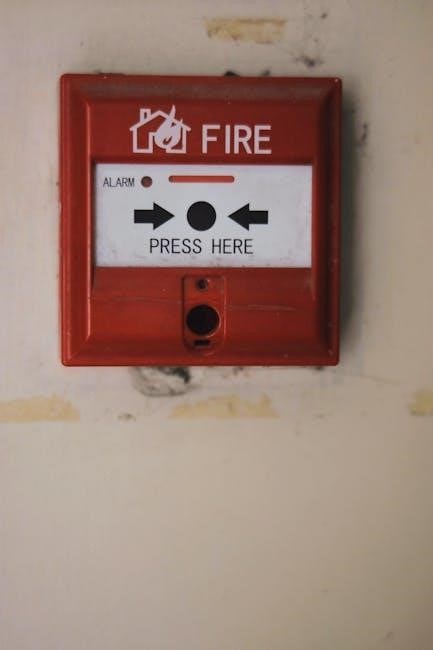
The Gemini system supports programming up to 32 distinct zones, allowing for granular control and customized security coverage. Each zone represents a specific area or sensor, such as a door, window, or motion detector. Programming involves assigning a unique zone number and defining its characteristics – instant, entry delay, or exit delay – through the control panel and keypad (GEM-RP1CAe2).
Zone programming is essential for tailoring the system to your property’s layout and security requirements. Advance sequentially through each zone, configuring its response type. Proper zone definition minimizes false alarms and ensures accurate event reporting. Refer to the system’s detailed programming guide for specific instructions and advanced options. Careful planning during zone setup maximizes the system’s effectiveness.
Sensor Installation and Configuration
Proper sensor installation is crucial for the reliability of your Gemini home alarm system. Begin by carefully selecting sensor locations, ensuring optimal coverage of potential entry points – doors, windows, and areas prone to intrusion. Securely mount sensors using the provided hardware, following the manufacturer’s guidelines for wiring and placement.
Configuration involves assigning each sensor to a specific zone within the system’s programming (up to 32 zones). This allows the control panel to identify the source of an alarm event. Test each sensor after installation to verify its functionality and communication with the panel. Regularly inspect sensors for damage or obstructions, maintaining optimal performance. Wireless sensor integration requires pairing with the control panel.
Wireless Sensor Integration
The Gemini system supports a range of wireless sensors, expanding your security coverage without the need for extensive wiring. Before integrating wireless sensors, ensure compatibility with your control panel – specifically, the GEM-P1632 model. Initiate the pairing process through the control panel’s programming menu, following the sensor manufacturer’s instructions for entering pairing mode.
Successful pairing establishes communication between the sensor and the panel. Test each wireless sensor after integration to confirm signal strength and functionality. Consider signal interference from other wireless devices and adjust sensor placement accordingly. Regularly check battery levels in wireless sensors, as low batteries can compromise system reliability. Proper integration enhances flexibility and ease of installation.
Bypassing Zones

Zone bypassing allows temporary deactivation of specific sensors within your Gemini system, useful when a window is open or a pet is roaming freely. Access the zone bypass function through the control panel’s keypad, navigating to the programming menu. Select the zone number you wish to bypass – up to 32 zones are supported – and confirm your selection.
Bypassed zones will not trigger an alarm, but the system remains armed for all other protected areas. Remember that bypassing a zone reduces overall security coverage. The system typically indicates bypassed zones on the keypad display. Always re-enable bypassed zones once the triggering condition is resolved to restore full protection. Careful zone management is crucial for effective security.
Chime Mode Operation
Chime mode provides audible notification of activity at protected zones without triggering a full alarm. This is ideal for monitoring door and window openings during daytime hours or when you’re home. Activate chime mode through the control panel’s keypad, typically by entering a specific code or navigating the system menu.
When a sensor is triggered in chime mode, the keypad emits a single beep – this chime sound confirms activity. Not all zones may be configurable for chime operation; consult the programming section of this manual. Remember that chime mode does not provide the same level of security as full arming. To return to standard alarm operation, simply disarm and re-arm the system.
Central Station Monitoring
Central station monitoring provides 24/7 professional surveillance of your Gemini alarm system. When an alarm signal is received – due to a fire, burglary, or other emergency – the central station immediately attempts to verify the event and then notifies the appropriate authorities, such as the fire department or police.
To enable central station monitoring, you must establish an account with a reputable monitoring company authorized to work with NAPCO systems. The Gemini system transmits alarm, emergency, and trouble reports to the central station. Ensure your account details are correctly programmed into the control panel. Regular testing of the communication link with the central station is crucial to confirm proper functionality and reliable protection.
Troubleshooting Common Issues
Addressing issues promptly ensures continued system reliability. Common problems include false alarms, keypad errors, and sensor malfunctions. False alarms can stem from improperly installed sensors, environmental factors, or user error – ensure proper sensor placement and sensitivity settings. Keypad errors often relate to incorrect codes or low battery levels; verify the code and replace the battery if needed.
Sensor malfunctions may indicate a need for replacement or wiring checks. If the system displays a “Trouble” indicator, consult the LED indicator section of this manual for specific guidance. Regularly testing sensors and the system’s communication with the central station can proactively identify and resolve potential issues before they escalate into emergencies.
False Alarms: Causes and Prevention
False alarms are a frequent concern, often triggered by preventable factors. Common causes include improperly installed or adjusted sensors, pets, drafts, insects, or even sudden temperature changes. To minimize these occurrences, ensure sensors are securely mounted and positioned correctly, avoiding direct sunlight or heat sources. Adjust sensor sensitivity levels to suit your environment, reducing reactivity to minor disturbances.
Regularly inspect sensors for obstructions and ensure proper wiring connections. Educate all users on correct arming and disarming procedures to avoid accidental activations. Consider utilizing “Chime” mode for initial testing after adjustments. Promptly address any identified issues to maintain system accuracy and prevent unnecessary responses from the central station.
Keypad Errors
The GEM-RP1CAe2 keypad, while user-friendly, can occasionally display errors. These often manifest as alphanumeric codes or descriptive messages on the LCD screen. Common errors include incorrect user codes entered repeatedly, communication failures with the control panel, or low battery indications. If an error occurs, consult the system’s troubleshooting section for specific code definitions.

Attempting a system reset can often resolve minor keypad glitches. Ensure the keypad has sufficient battery power, as low batteries can cause erratic behavior. If the error persists, verify the keypad’s wiring connections to the control panel. For persistent or unfamiliar errors, documenting the exact message and contacting technical support is recommended for accurate diagnosis and resolution.
Sensor Malfunctions
Various issues can cause sensor malfunctions within the Gemini system, leading to false alarms or a failure to detect intrusions. Common problems include low battery levels in wireless sensors, physical damage to the sensor itself, or obstructions blocking the sensor’s field of view. Wiring issues, particularly with hardwired sensors, can also contribute to malfunctions.
Regularly testing each sensor is crucial for identifying potential problems. The control panel’s programming mode allows for individual sensor testing. If a sensor consistently reports a fault or fails the test, it may require replacement or repair. Ensure proper sensor placement and avoid areas prone to environmental interference. Documenting any recurring sensor issues will aid technical support in diagnosing the root cause.
Resetting the Keypad After an Alarm
Following an alarm event, the Gemini system keypad will typically enter an alarm state, requiring manual resetting. This prevents unauthorized disarming and confirms the situation has been addressed. To reset, enter a valid user code – the same code used for disarming the system – into the keypad.
If the alarm condition persists (e.g., a door remains open, smoke is still detected), the keypad may not reset immediately. Correct the triggering condition first, such as closing the door or ventilating the area. Pressing the “C” or “Cancel” key may also be necessary after correcting the issue. The system will then return to its armed or disarmed state, depending on the previous setting. Refer to the manual for specific keypad models.
Battery Backup System
The Gemini system incorporates a battery backup, ensuring continued operation during power outages. This backup power sustains the control panel and connected sensors, maintaining security even when AC power is unavailable. Regularly testing the battery is crucial; the system typically performs self-tests, but manual verification is recommended every six months.
A failing battery will often trigger a “Low Battery” trouble indicator on the keypad. Replace the battery promptly with a compatible type specified in the manual. Battery life varies depending on usage and environmental conditions, generally lasting between 3 to 5 years. Proper battery maintenance guarantees uninterrupted protection and reliable alarm functionality, safeguarding your property even during extended power disruptions.
NAPCO Gemini GEM-P1632 Installation
Installing the NAPCO Gemini GEM-P1632 requires careful adherence to the provided instructions and local electrical codes. Begin by selecting a secure, central location for the control panel, away from potential interference or tampering. Ensure proper wiring connections for AC power, phone line (if applicable for central station monitoring), and sensor zones.
Programming zones is a critical step, allowing the system to identify and respond to specific sensor locations. The GEM-P1632 supports up to 32 zones, each configurable for different sensor types and alarm responses. Thoroughly test each zone after installation to verify proper communication with the control panel. Refer to the detailed installation guide for specific wiring diagrams and programming sequences, ensuring a robust and reliable security system.
System Updates and Firmware
Maintaining up-to-date firmware is crucial for optimal performance and security of your NAPCO Gemini GEM-P1632 system. Regularly check the NAPCO Security Systems website for available updates, as these often include bug fixes, enhanced features, and improved compatibility with new sensors or technologies.
The update process typically involves downloading the firmware file to a compatible USB drive and then following the on-screen prompts on the GEM-RP1CAe2 keypad. Always back up your system configuration before initiating an update to prevent data loss. A failed update could potentially render the system inoperable, so ensure a stable power supply during the entire process. Proper firmware management safeguards against vulnerabilities and ensures continued reliable operation.

Advanced Settings and Customization
The Gemini system offers extensive customization options beyond basic programming. Users can adjust settings like entry/exit delays, alarm cut-off times, and sensor sensitivity levels to tailor the system to their specific needs and environment. Advanced programming allows for intricate zone definitions, including instant, entry, or exit-only configurations.
Furthermore, the system supports customized reporting formats for central station monitoring, enabling detailed event logging and analysis. Experienced users can explore options for macro programming, creating automated sequences for complex security scenarios. Careful consideration is advised when modifying advanced settings, as incorrect configurations can impact system functionality. Refer to the full programming guide for detailed explanations of each parameter.

Understanding Alarm Signals and Reports
The Gemini system generates distinct signals for various alarm events, including burglary, fire, and trouble conditions. These signals are transmitted to a central monitoring station, if service is enabled, providing detailed reports on the nature and location of the alarm. Reports typically include zone identification, alarm type, and timestamp information.
Understanding these reports is crucial for effective response and troubleshooting. The system also provides local reporting through the keypad, displaying event logs and system status. Central station monitoring ensures prompt notification of authorities in emergency situations. Different signal types indicate varying levels of urgency, allowing for prioritized response. Familiarize yourself with the specific report codes used by your monitoring provider for optimal system awareness.
Compliance and Safety Information
The NAPCO Gemini system is designed to comply with relevant industry standards and regulations regarding safety and security. Installation must adhere to local codes and ordinances, ensuring proper functionality and minimizing potential hazards. Regular testing of the system, including sensors, keypad, and communication links, is essential for maintaining compliance.
Safety precautions should be observed during installation and maintenance, including disconnecting power before working with electrical components. Avoid exposing the control panel or keypad to excessive moisture or extreme temperatures. This system is intended for use as a security aid and should not be solely relied upon for life safety. Always follow manufacturer’s instructions and consult with a qualified technician for any complex installations or repairs.
Contacting Technical Support
For assistance with your NAPCO Gemini system, dedicated technical support is readily available to address any questions or concerns you may encounter. Prompt and efficient support ensures optimal system performance and user satisfaction. Contact information can be found on the NAPCO Security Systems website, offering multiple channels for reaching a qualified technician.
These channels include a dedicated phone support line, email assistance, and an extensive online knowledge base with FAQs and troubleshooting guides. When contacting support, be prepared to provide your system model number, firmware version, and a detailed description of the issue. This will help expedite the resolution process. NAPCO is committed to providing exceptional customer service and ensuring a secure environment for your home or business.